The file manager that never waits for the disk
Split panes and tabs, millisecond search across every drive, archives that open like folders, a duplicate finder and a sorter. One .exe for Windows 10 and 11, written in Rust — no Electron, no background services.
Free and open source (MIT). Installs without admin rights. The interface is in Russian.
| Name | Modified | Folder | Size |
|---|---|---|---|
| stream 2026-09-30.mkvD:\Video\Streams | 09/30/2026 | D:\Video\Streams | 8.1 GB |
| VID_2026-09-28.mp4C:\Users\user\Downloads | 09/28/2026 | C:\Users\user\Downloads | 1.4 GB |
| clip-212.movE:\Архив\Видео | 02/03/2026 | E:\Архив\Видео | 2.7 GB |
Try:
This demo runs in your browser on a made-up drive, with the same query language as the app. MH Files searches this way across an index of all your drives: names in memory, a snapshot on disk, live updates.
Everything you want from a file manager, by mouse or keyboard
Every action lives in a menu, in the command palette (Ctrl+Shift+P) and on a shortcut you can rebind.
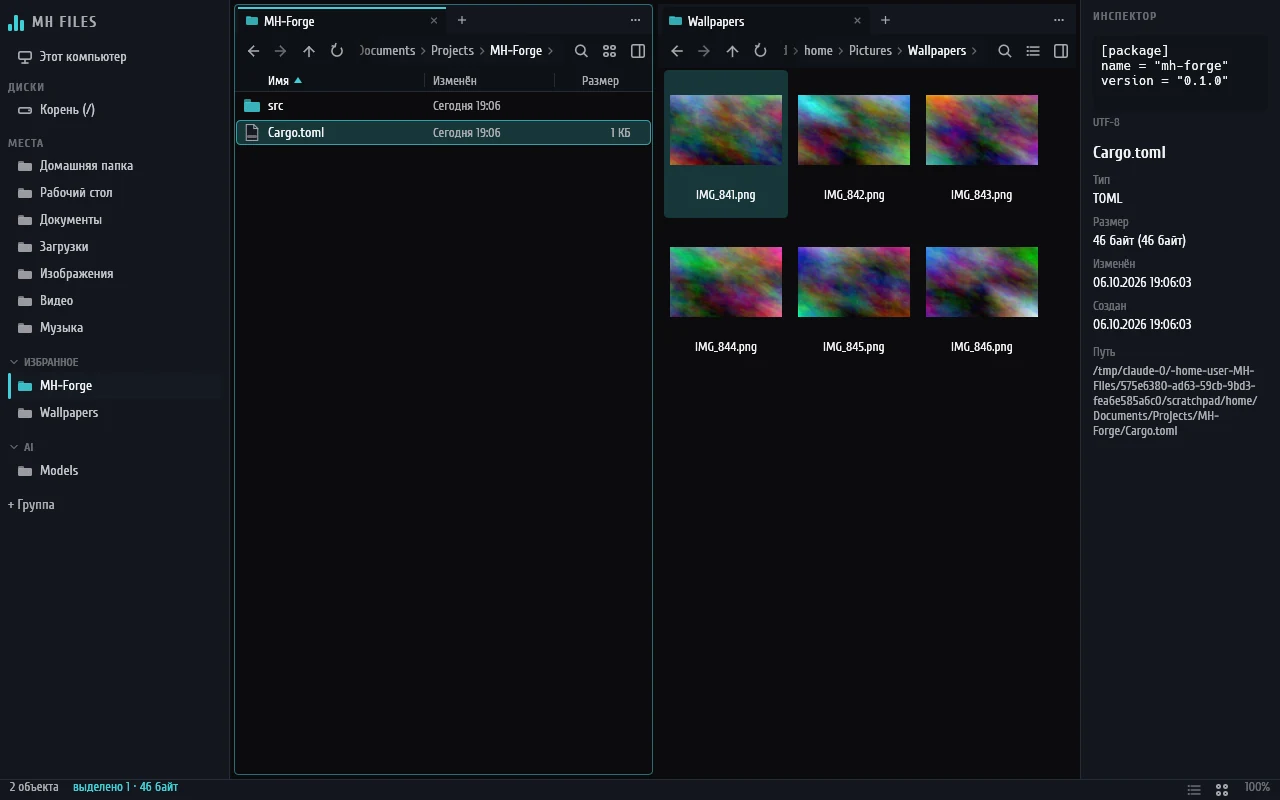
Panes and tabs
- Split panes in any direction, each with its own tabs. Drag a tab into another pane or onto its edge, or a folder onto the window edge.
- Table, thumbnail tiles and columns. Ctrl + mouse wheel resizes tiles and rows.
- The Inspector (Alt+P) previews images and SVG, text, PDF, fonts, video and music properties, and Office documents.
- Your session comes back on launch — tabs survive even a crash.
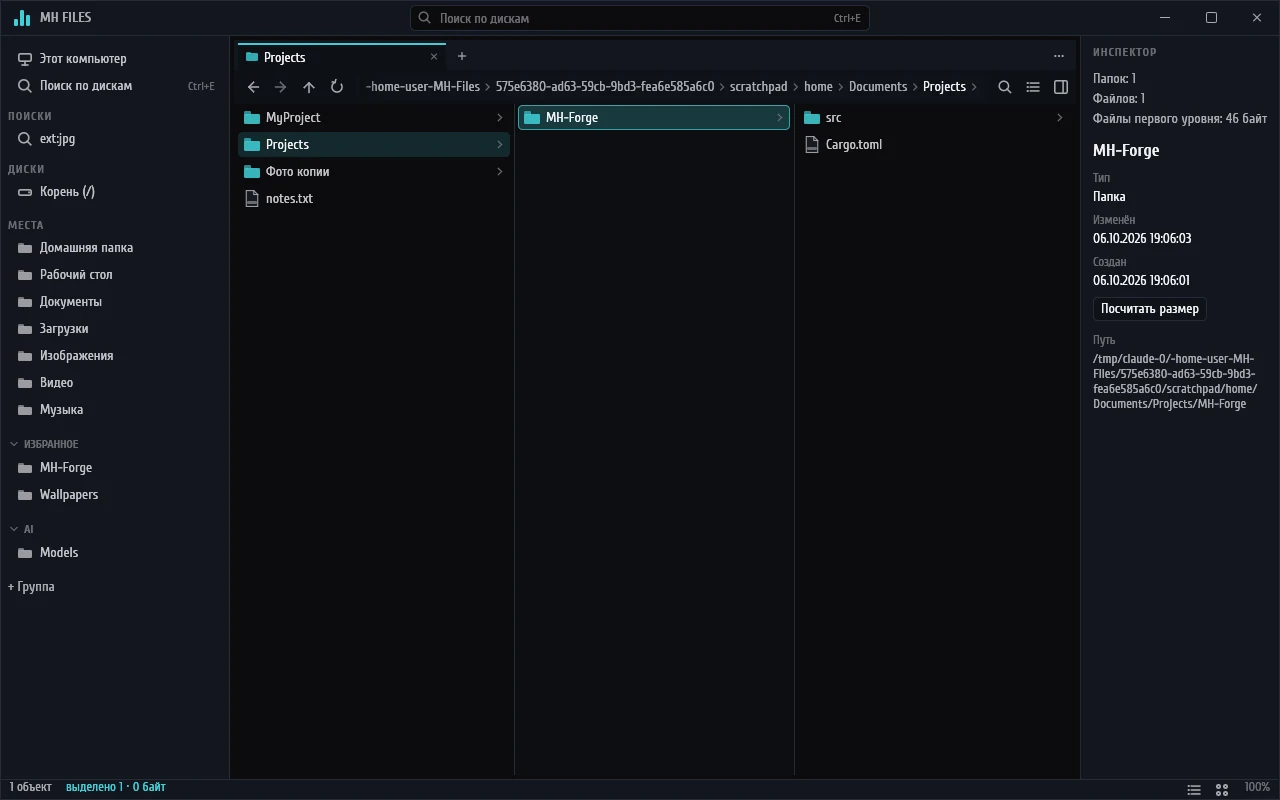
Columns
- Parent folders on the left, the contents of the selected one on the right: you always see where you are and can walk the tree with arrow keys.
- Every segment of the path bar lists its subfolders. You can type
%variables%into it. - GoTo (Ctrl+G) and folder filter (Ctrl+F). Key sequences: Alt+G, then D opens Downloads.
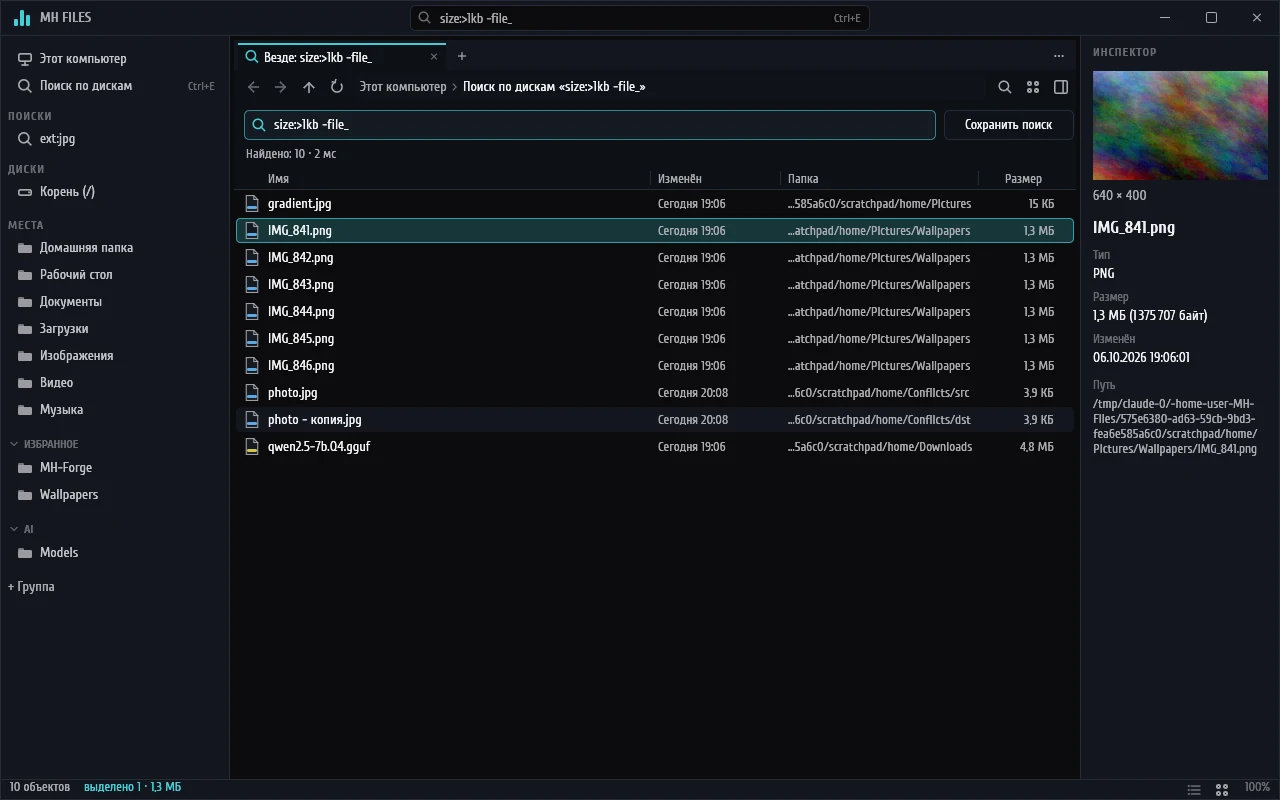
Search across every drive
- A name index of all drives kept in memory: answers in milliseconds, updated live. Removable and network drives too.
- Run as administrator, MH Files builds the first NTFS index from the MFT in seconds.
- Queries like
report -draft,*.psd,ext:mp4 size:>1gb,dm:week,type:folder,in:"C:\Projects". - Saved searches in the sidebar. Search subfolders (Ctrl+Shift+F) and the contents of text files (Ctrl+Alt+F).
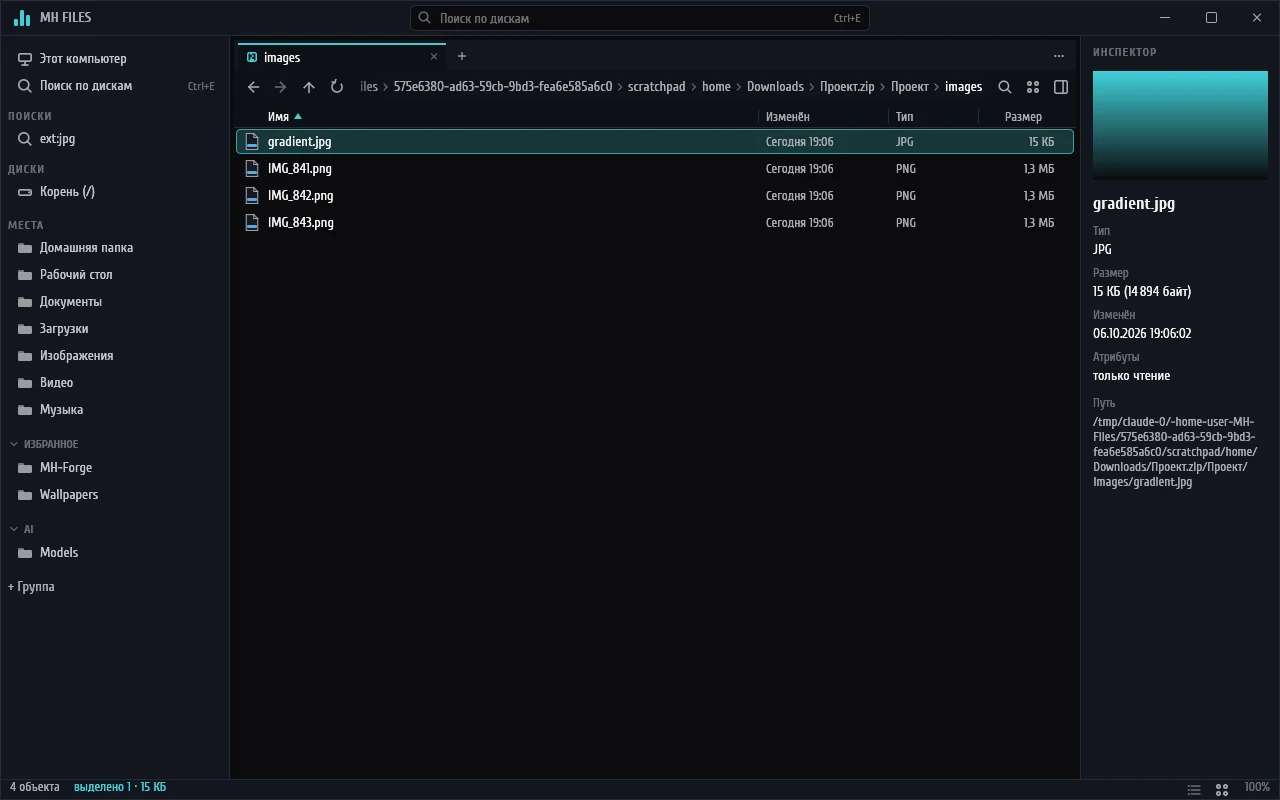
Archives as folders
- zip, 7z and rar open like regular folders, archives inside archives too. rar goes through 7-Zip or the
tar.exethat ships with Windows 11. - Preview inside the archive, Extract, drag out or Ctrl+C straight from it.
- Drop files into a zip: MH Files writes a copy of the archive and swaps it in, never overwriting names already there.
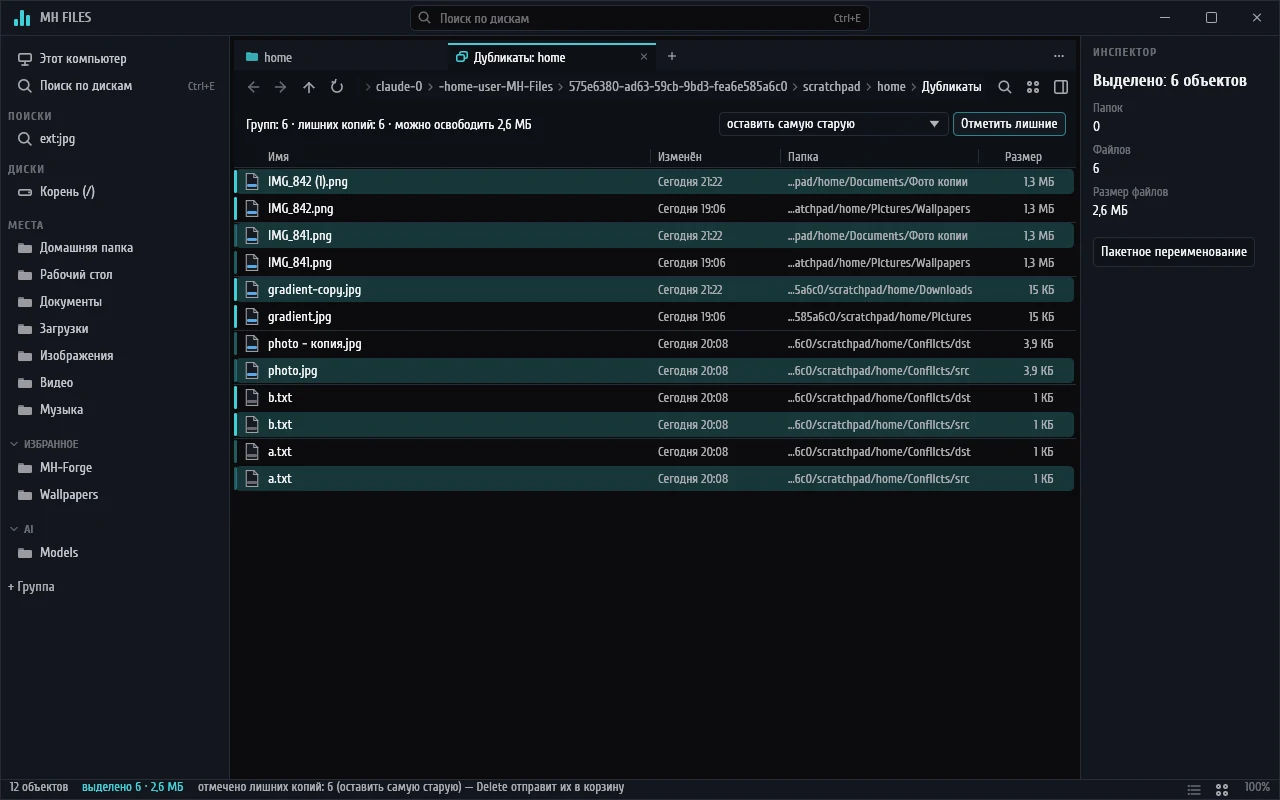
Duplicates
- Finds files with identical contents and marks the extra copies: keep the oldest, the newest, or the one with the shortest path.
- Shows how much space you will free. Small files and folders you don’t care about can be excluded.
- Instead of deleting, replace copies with hard links: the space is freed, the files stay where they were.
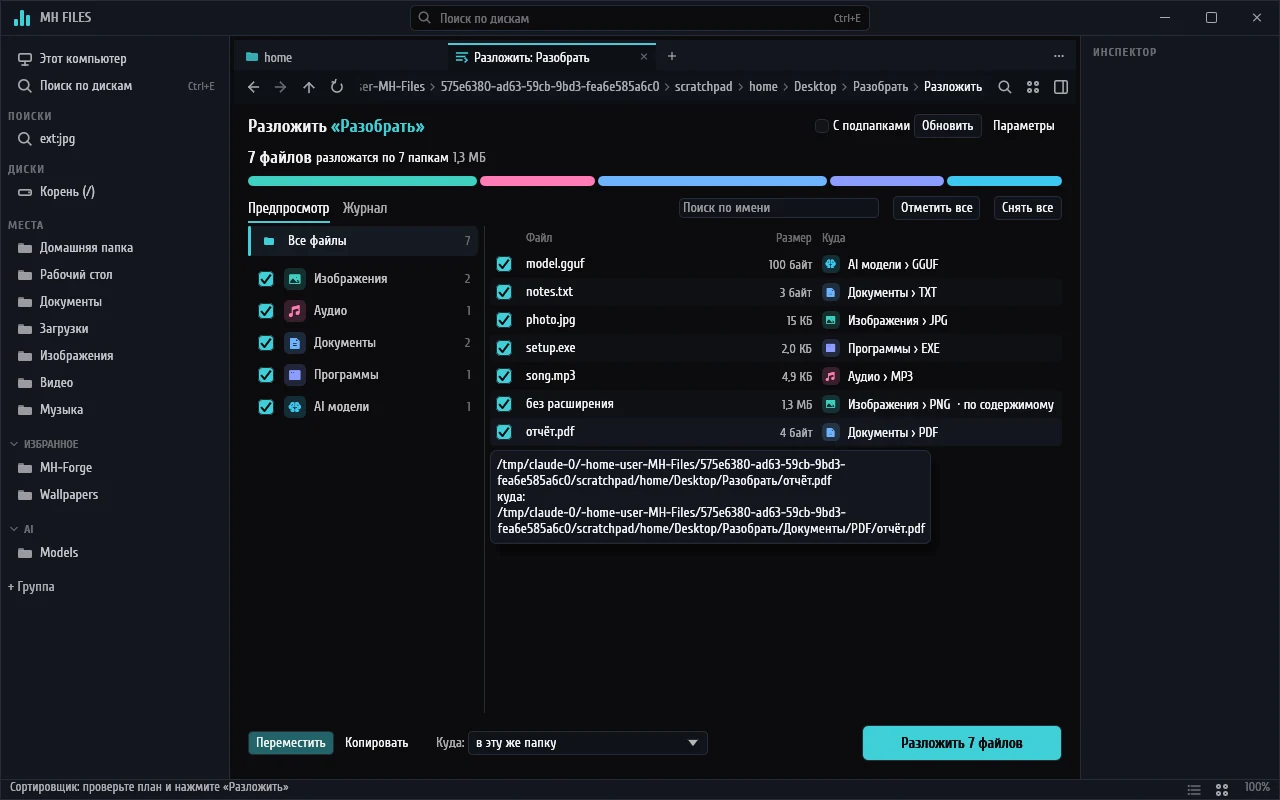
The MH Sort sorter, built in
- Sorts a folder by category and type —
Video\MP4,Documents\PDF— with a preview of the plan and checkboxes per file and category. - Move or copy, and undo from the log.
- Rules like “older than a year goes to Archive” and “over 4 GB goes to Large”, plus scheduled sorting.
- Edit categories in Settings;
categories.jsonuses the same format as MH Sort.
Files
- Copy, move, Recycle Bin and UAC go through the Windows Shell, just like in Explorer. Its own operations panel with pause and cancel.
- Ctrl+Z undoes renames, moves, copies, new files and folders, and deletes to the Recycle Bin.
- Drag and drop with Explorer and the desktop in both directions.
- A context menu that includes items from your apps — 7-Zip, Git, PowerToys — with icons and no duplicates.
- Batch rename with rules and variables, color labels, the Recycle Bin as a tab.
Preview
- Quick Look on Space: video and music play right there, with an equalizer and cover art for audio.
- Thumbnails for every type Windows knows, such as
.blendfiles from Blender. - Fonts show samples in the languages of your keyboard layouts.
- Folder sizes appear right away, straight from the search index.
Windows
- One instance: a path from a shortcut,
cmdor Explorer opens as a tab in the window you already have. - “Open in MH Files” in Explorer’s menu and, if you want, opening folders in MH Files instead of Explorer.
- A custom title bar with Windows 11 Snap Layouts. Paths longer than 260 characters.
- Update check on request, with a single call to GitHub.
The window answers while the disk thinks
Folder reads, thumbnails, network and Shell extensions all run in the background. A sleeping HDD or a vanished network share never freezes the interface.
| What | Target | How |
|---|---|---|
| Launch | < 300 ms to first frame | Only settings and session are read before the window opens; everything else loads in the background. |
| Drive search | 9–32 ms over 2M names | Names sit in memory back to back, and substring search runs on every core. The index snapshot loads in about a second at launch. |
| Opening a folder | in the same frame | The path bar updates at once; the listing streams in. |
| Folder with 100,000 files | smooth scrolling | A virtual list draws only the visible rows. |
| Sleeping HDD, unreachable network | never block other panes | Every drive gets its own thread; navigating elsewhere cancels the wait. |
| Copying 100 GB | the window stays responsive | Operations run on their own thread, with pause and cancel. |
| Index memory | ≈ 50 MB per 1M files | Icons and thumbnails live in a bounded cache. |
Targets come from the project plan; search speed is measured by a test over 2 million names.
Shortcuts
The essentials. The full list is in the command palette and in Settings › Keys, where you can rebind any of them.
- Command palette
- Ctrl+Shift+P
- GoTo / type a path
- Ctrl+GCtrl+L
- Search all drives
- Ctrl+E
- Filter folder
- Ctrl+F
- Search subfolders / contents
- Ctrl+Shift+FCtrl+Alt+F
- Table / tiles / columns
- Ctrl+1Ctrl+2Ctrl+3
- Quick Look
- Space
- Rename / batch rename
- F2Ctrl+Shift+R
- Recycle / delete permanently
- DeleteShift+Delete
- Undo
- Ctrl+Z
- New / close / reopen tab
- Ctrl+TCtrl+WCtrl+Alt+T
- Split right / down
- Ctrl+\Ctrl+Shift+\
- Inspector / sidebar
- Alt+PCtrl+B
- Extract / sort into folders
- Ctrl+Shift+ECtrl+Shift+O
- Windows menu / terminal here
- Shift+F10Ctrl+Shift+T
- Settings
- Ctrl+,
Download MH Files 1.0.1
Two builds of the same app. Take the installer for your own PC, the portable one for a USB stick or someone else’s computer.
System
Windows 10 version 1809 or later, or Windows 11, 64-bit. The interface is in Russian.
SmartScreen warning
The project has no code-signing certificate yet, so on first launch Windows warns about an unknown publisher. Click “More info”, then “Run anyway”.
Verify the file
Checksums are in SHA256SUMS.txt. Compare them with the output of Get-FileHash in PowerShell.
Command line
MH-Files.exe [--new-window] [--portable] [path…]
A path to a file opens its folder with the file selected. If MH Files is already running, the path opens as a tab there; --new-window opens a separate window.
Questions
Is there an English interface?
Not yet: menus, settings and messages are in Russian. Shortcuts, the query language (ext:, size:, dm:week, type:folder) and file paths work the same in any language.
Does MH Files replace Explorer?
No, it works alongside it. If you like, turn on “Open folders in MH Files” in Settings › System, and folders opened from other apps will land in MH Files. Win+E still opens Explorer.
Does it need admin rights?
No, neither to install nor to run. With admin rights MH Files builds the first NTFS index faster — from the MFT, in seconds. Without them the index is built by walking folders in the background.
Where are settings stored, and how do I uninstall?
Settings, session, labels and sorter categories live in %APPDATA%\MH Files, the search index in %LOCALAPPDATA%\MH Files\index. The portable build keeps everything in the data folder next to the exe.
Uninstall the installed version from Settings › Apps. The settings folder stays behind — delete it yourself if you no longer need it.
I use MH Sort. What happens to my categories?
The MH Sort sorter is built into MH Files. On first launch it picks up the categories of an installed MH Sort automatically: categories.json uses the same format.
What doesn’t work yet?
You can’t replace a file with the same name inside a zip — the new one is added next to it with a number. Writing to 7z isn’t supported.
A color label is tied to the path: a file renamed in Explorer loses its label.
Report bugs in GitHub Issues. The app saves crash reports on its own — find them in Settings › System.
How do I build it from source?
You need Rust with the MSVC target. Run cargo build --release to get target\release\MH-Files.exe. tools\build-release.ps1 builds the installer and the zip. Details are in the README.